
How to Connect Google Workspace with App Password: Complete Step-by-Step Guide
Learn how to generate an App Password in Google Workspace and securely connect your Gmail account to Leadigger for sending cold emails.
Table of Contents
What is an App Password?
An App Password is a 16-character code that gives third-party apps or devices permission to access your Google Account. It's a secure way to connect apps like Leadigger without sharing your main Google password.
When you use an App Password, you maintain the security of your Google account while allowing specific applications to send emails on your behalf.
Why App Passwords?
Google requires App Passwords for third-party apps when 2-Step Verification is enabled. This provides an extra layer of security for your account.
Prerequisites
Before you start, make sure you have:
- A Google Workspace or Gmail account
- Admin access to your Google account settings
- A Leadigger account (sign up for free if you don't have one)
Step 1: Enable 2-Step Verification
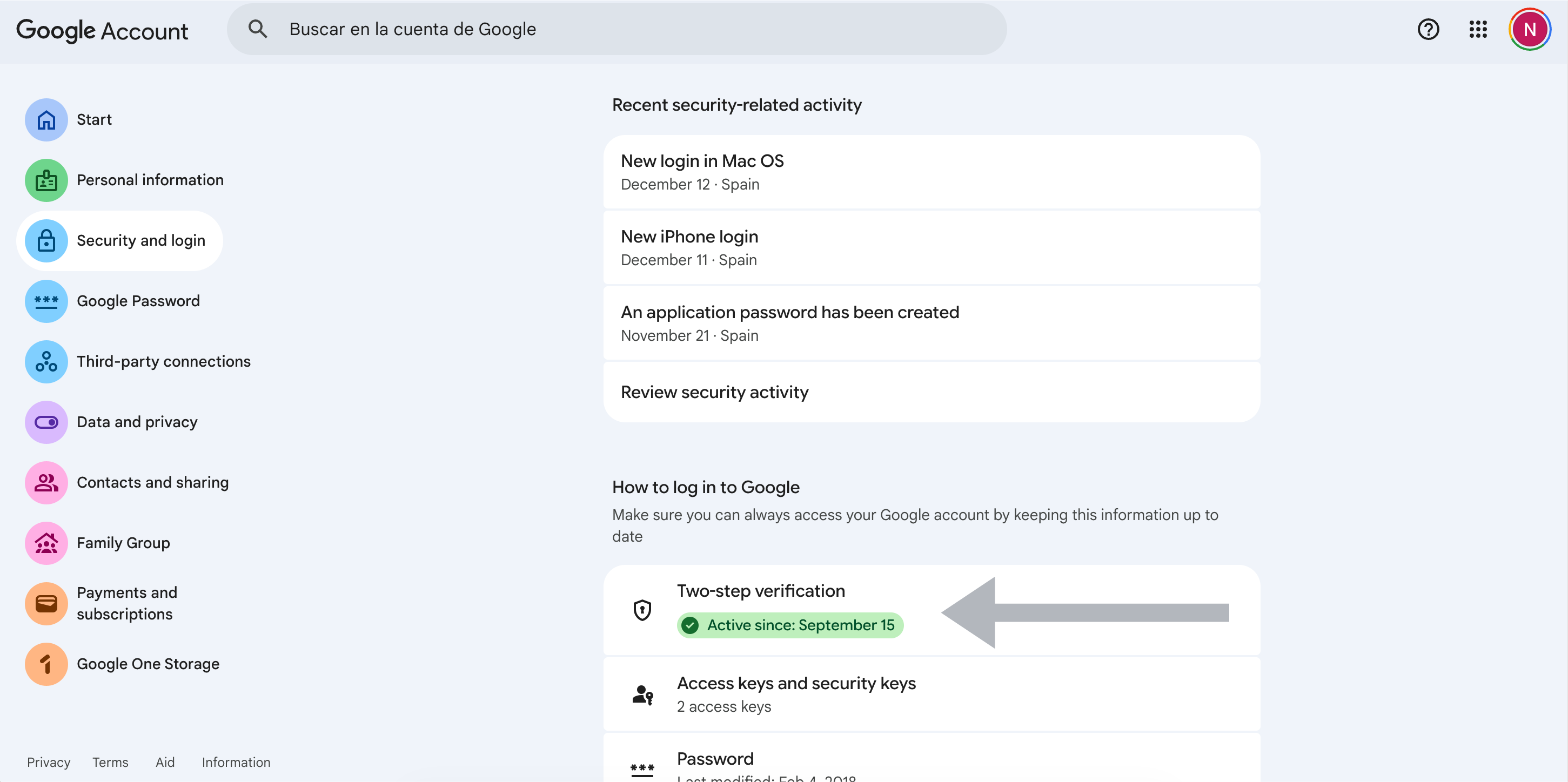
App Passwords are only available when 2-Step Verification is enabled on your Google account. Here's how to enable it:
- 1
- 2
Navigate to Security
In the left navigation panel, click on "Security".
- 3
Find "How you sign in to Google"
Scroll down to the section called "How you sign in to Google" and click on "2-Step Verification".
- 4
Turn on 2-Step Verification
Click "Get started" and follow the prompts. You'll need to verify your phone number.
- 5
Complete the setup
Choose your preferred verification method (text message, Google Authenticator, etc.) and complete the setup.
Success!
Once 2-Step Verification is enabled, you'll see a confirmation message. Now you can generate App Passwords.
Step 2: Generate App Password
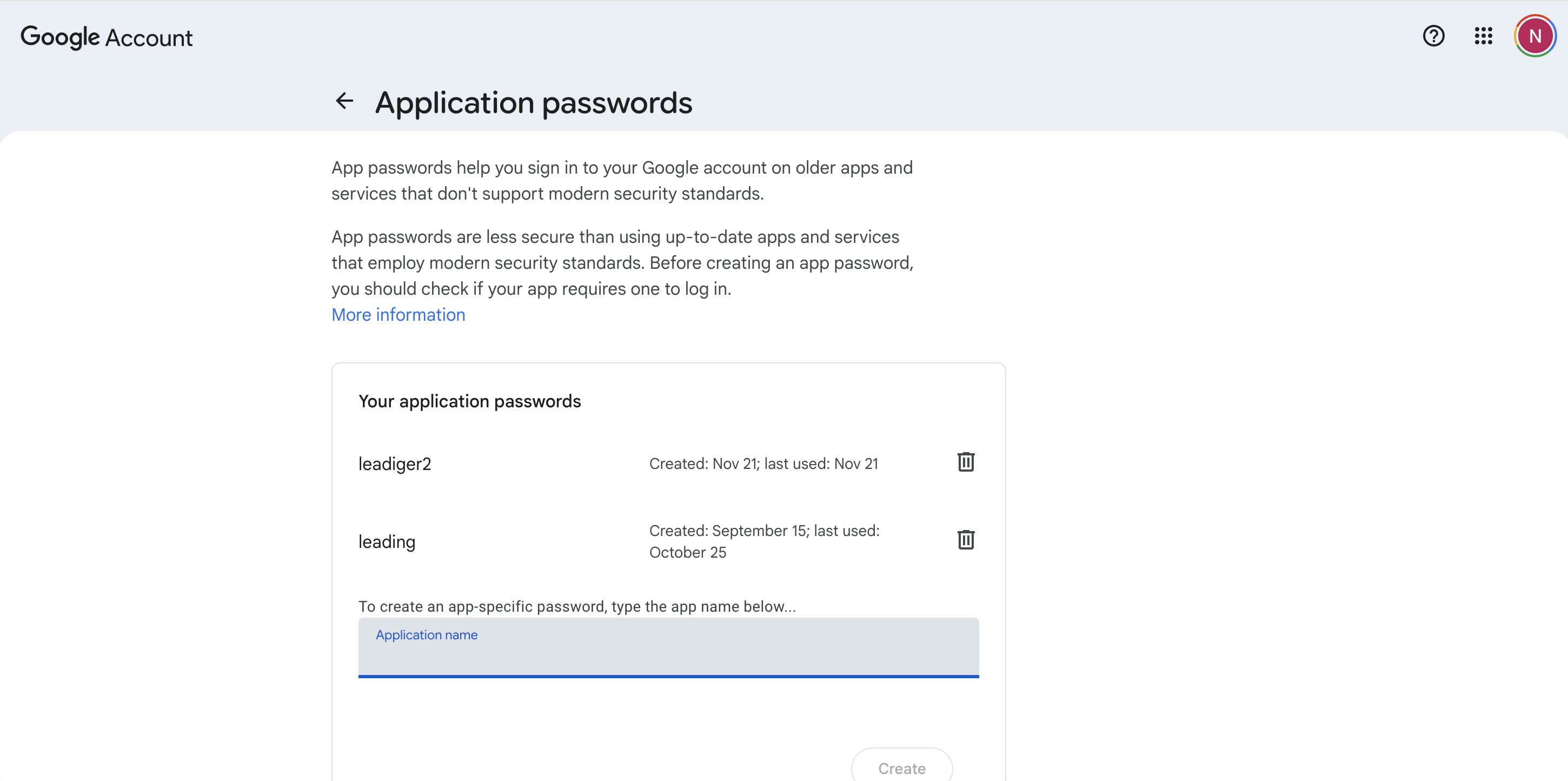
Now that 2-Step Verification is enabled, you can create an App Password for Leadigger:
- 1
- 2
Name your App Password
In the "App name" field, type "Leadigger" (or any name you'll remember).
- 3
Click "Create"
Click the "Create" button to generate your App Password.
- 4
Copy the 16-character password
Google will display a 16-character password (4 groups of 4 letters). Copy this password immediately.
Important: Save this password!
You won't be able to see this password again after closing the window. If you lose it, you'll need to generate a new one.
Step 3: Connect to Leadigger
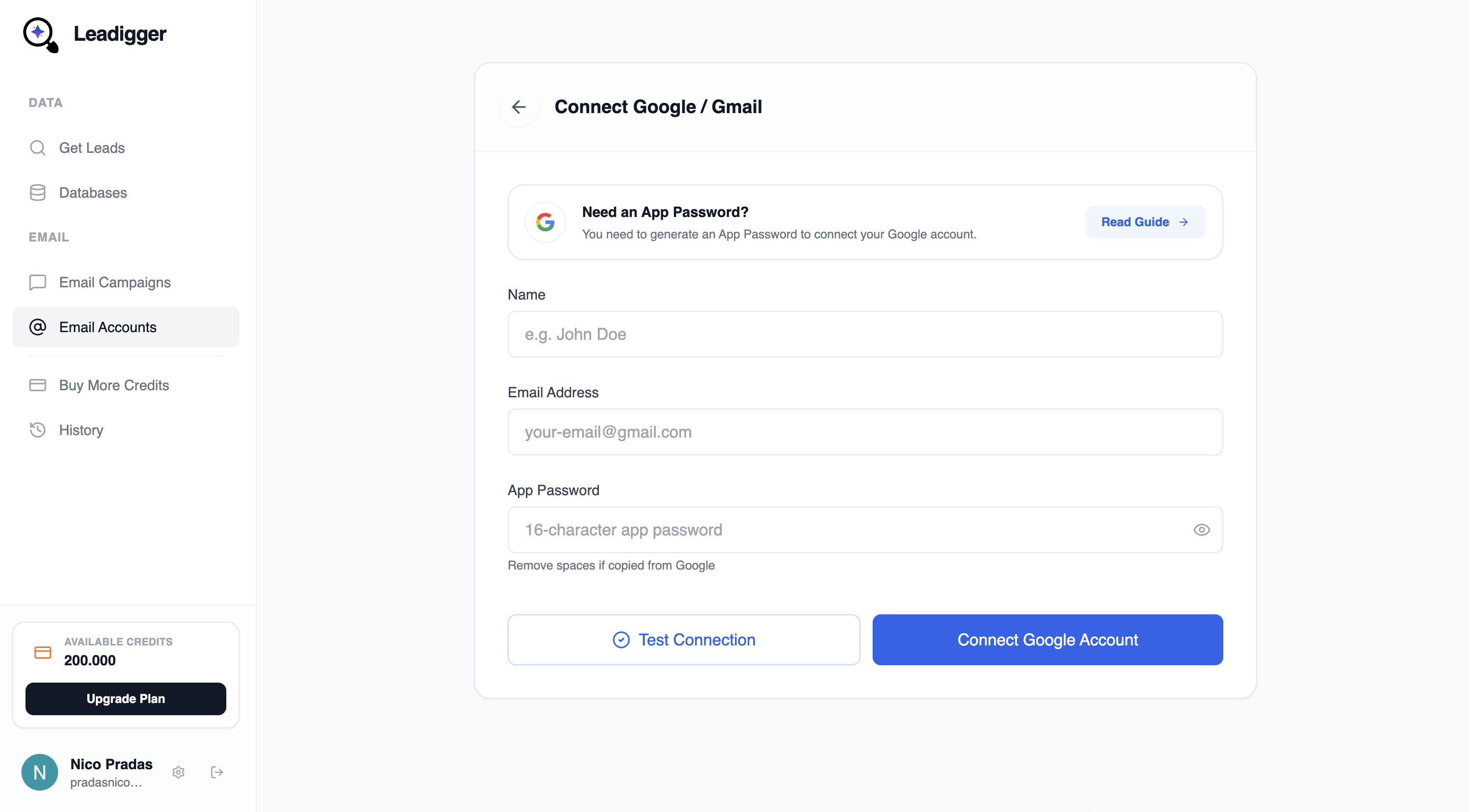
Now you can use your App Password to connect your Google account to Leadigger. Go to the Email Accounts section and select Google / Gmail, then fill in the form with:
Name
Your display name (e.g., John Doe)
Email Address
Your Gmail address (e.g., you@company.com)
App Password
The 16-character App Password you generated (remove spaces)
Ready to start generating leads?
Sign up for free and get 100 credits to start extracting leads from Instagram.
Get Started Free